
Deployments
Every time your app is built and released, FastAPI Cloud records it as a deployment. The Deployments tab in your app shows the full history, the status of each one, and the logs behind it, so you can see what’s live and diagnose anything that failed. For the mechanics of how a deployment is built and rolled out, see How It Works.
What Creates a Deployment?
Section titled “What Creates a Deployment?”A new deployment is created whenever:
- You run
fastapi deployfrom the CLI. - A push lands on the connected branch of a linked repository (see GitHub Integration).
- You choose Save and Redeploy after changing environment variables, autoscaling bounds, or a connected integration. This re-applies the new configuration by releasing a fresh deployment from your app’s current image, without rebuilding from source.
Deployment History
Section titled “Deployment History”- Navigate to your app in the dashboard.
- Select Deployments from the sidebar.
Each row shows:
- The commit message of the deployment, or “Deployment” when it wasn’t triggered from a commit.
- A short deployment ID (the first 8 characters). When the deployment came from GitHub, this links to the exact commit.
- A Live badge on the deployment currently serving traffic. During a gradual rollout it shows the share of traffic it’s taking (for example,
Live 40%) until it reaches 100%. - The current status, with a colored dot and a tooltip explaining it. In-progress deployments also show how long they’ve been running.
- When the deployment was created.
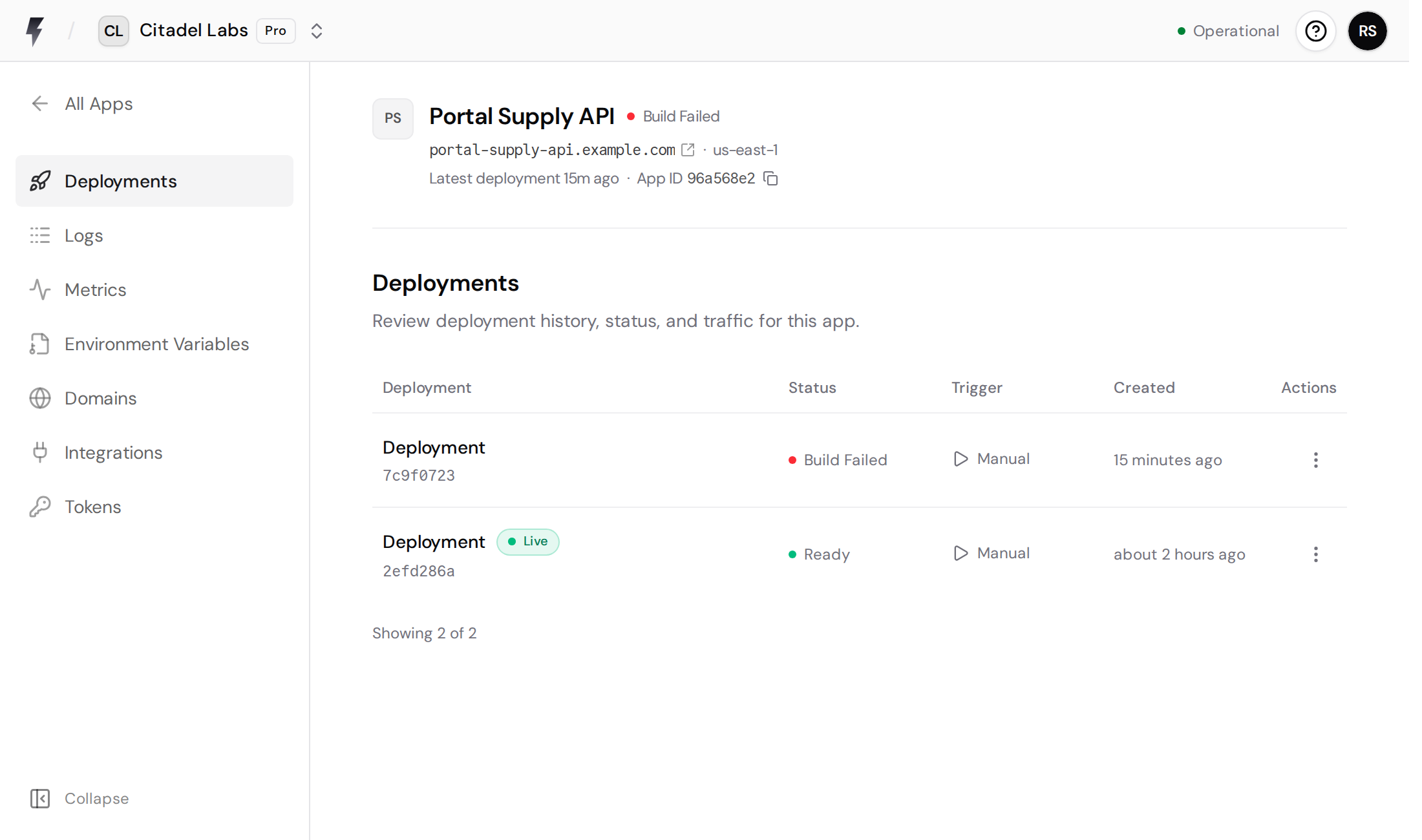
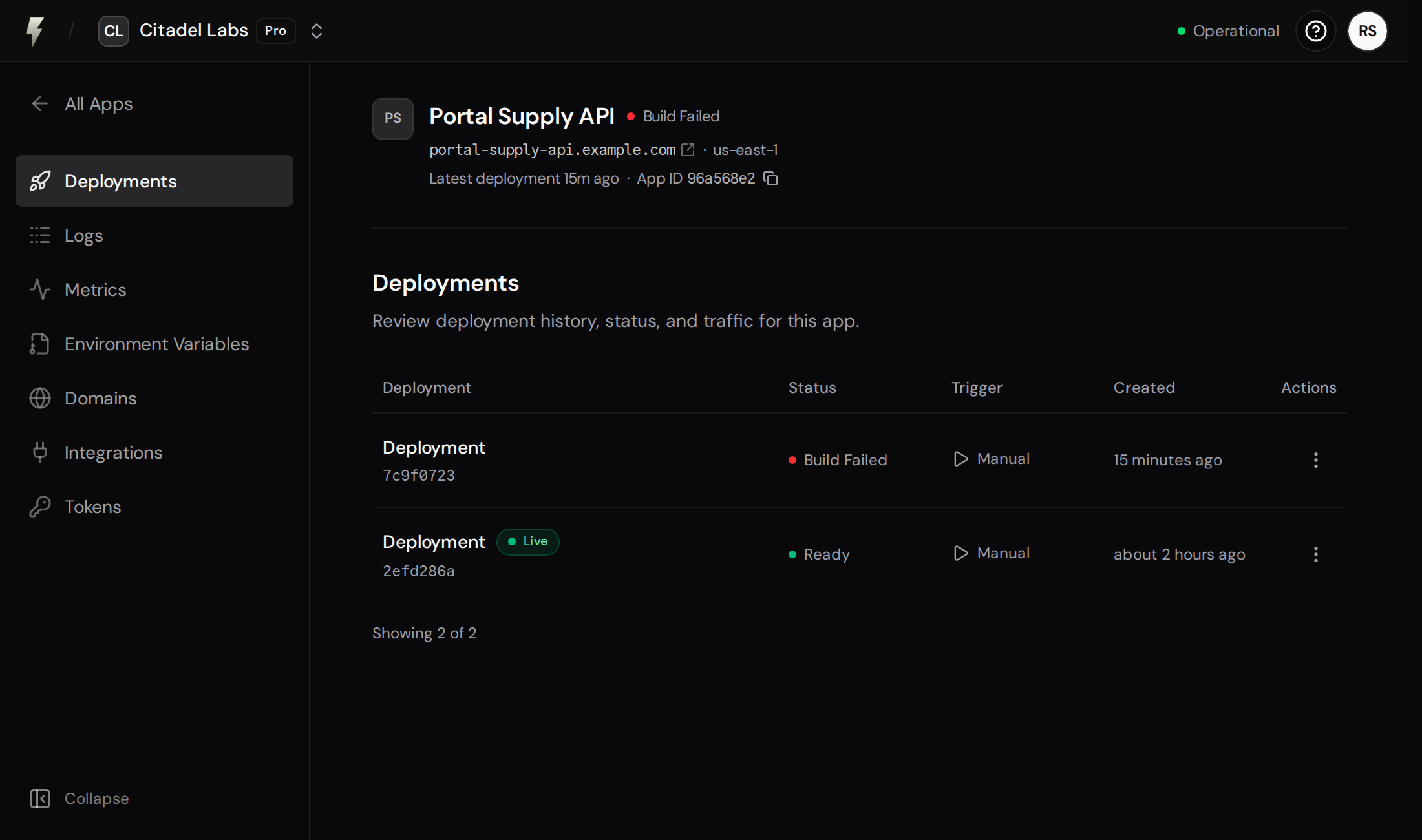
When there are more deployments than the list currently shows, a Load more button appears at the bottom. Click it to view older deployments.
Deployment Detail
Section titled “Deployment Detail”Select any deployment to open its detail view. The header shows the app name, the deployment ID (with a copy button), the creation date, the source commit if there is one, and the current routing and deployment status.
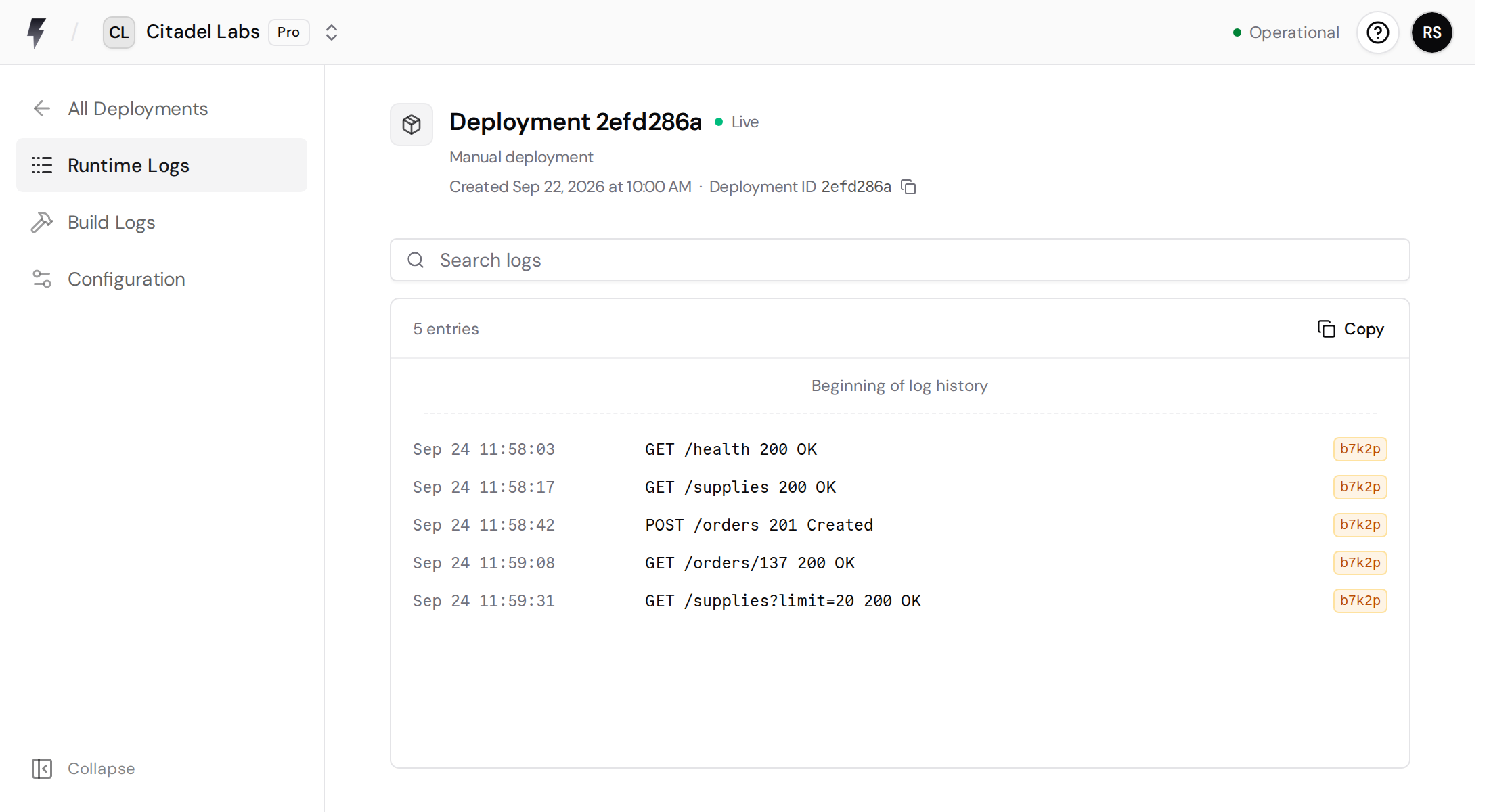
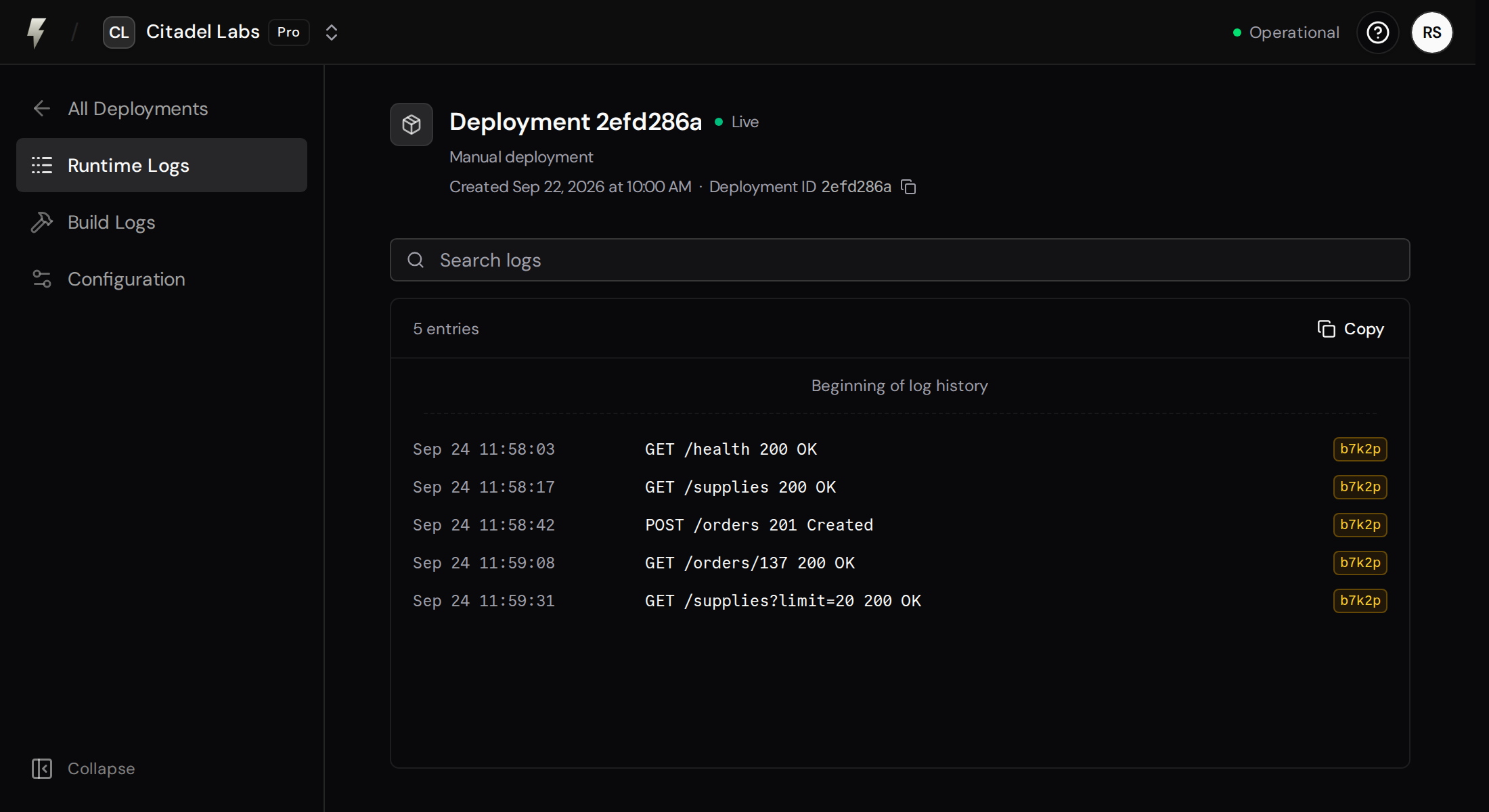
Use the deployment sidebar to switch between:
- Build Logs: The output from installing dependencies and building your app’s image. This is where to look when a deployment fails before it starts serving traffic.
- Runtime Logs: The logs your app emits once it’s running. This option becomes available once the deployment reaches a running state. For the full logs experience, including live streaming and filtering, see Logs.
Deployment Stages
Section titled “Deployment Stages”A deployment moves through five stages. The status of a deployment tells you which stage it’s in, or where it stopped.
| Stage | What happens |
|---|---|
| Upload | Your code is packaged and uploaded to the cloud. |
| Build | The upload is extracted and your app’s image is built. |
| Deploy | The built image is rolled out. |
| Verify | The new instances are checked for readiness before taking traffic. |
| Ready | The deployment is running and serving traffic. |
The rollout is gradual and designed for zero downtime: your previous deployment keeps serving traffic until the new one passes verification. If a new deployment fails, your last successful deployment stays live.
Deployment Statuses
Section titled “Deployment Statuses”The status column reflects where a deployment is in the pipeline. The most common statuses are:
| Status | Meaning |
|---|---|
Build Queued | Waiting to be picked up by the build system. |
Building Image | Building a container image from your source code. |
Deploying Image | Rolling the built image out to the cloud. |
Verifying Readiness | Checking that the app is ready to serve traffic. |
Ready | Running and serving traffic. |
Build Failed | The image couldn’t be built. Check the Build Logs. |
Verification Failed | The app didn’t pass readiness checks for several minutes. Check the Runtime Logs. |
Expired | An older deployment that is no longer retained. |
Redeploying
Section titled “Redeploying”To re-run a deployment with the same source, deploy again with fastapi deploy, or push a new commit if your app is linked to a repository. Configuration-only changes don’t need a rebuild: use Save and Redeploy where the change is made to release the update from your current image.